One schedule every tech can actually see
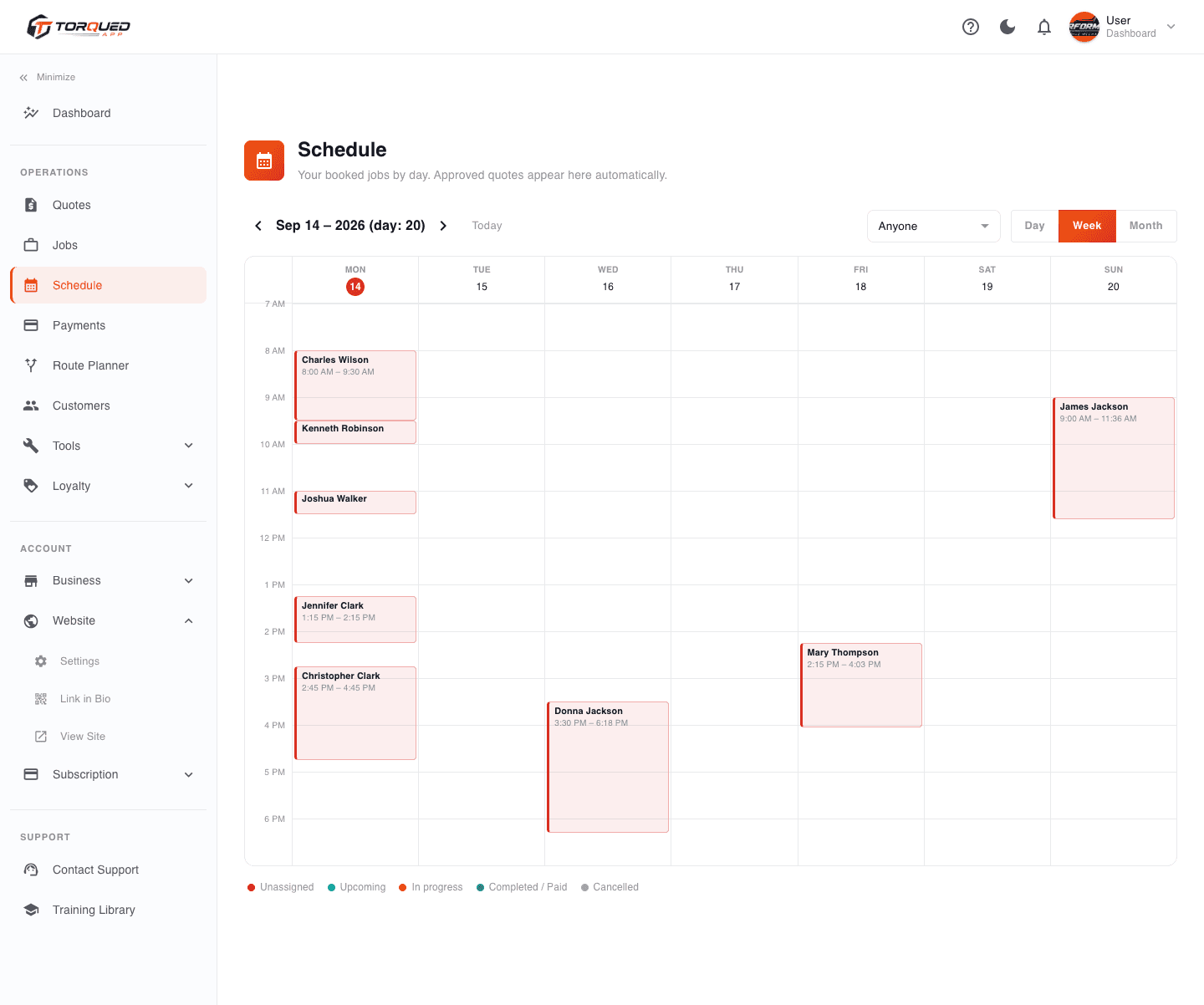
Every approved quote lands on your schedule automatically. Assign jobs to techs, track status from scheduled to complete, and never double-book a truck again.
Quick Overview
Approved quotes land on the schedule automatically — no manual re-entry, no missed jobs.
Assign a job to any tech in one click; conflicts are flagged before they happen, not after.
Every tech sees their own live schedule from their own login — no group text required.
yourshop.torqued.app/admin/schedule
MON
T. Davis
TUE
P. Lopez
WED
M. Walker
D. Jackson
THU
R. Focus
FRI
E. Miller
Assign in one click
Send a job to any tech from the queue — conflicts are flagged automatically before they become a problem.
Built for teams of any size
Solo tech or multi-tech shop, everyone sees the same live schedule — no group text required.
No more double-booking
Torqued blocks a tech's calendar automatically and warns you the moment two jobs overlap.
Check today's jobs from anywhere
Your schedule is just as usable from a phone in the driveway as it is from a desktop in the office.
Status tracked automatically
Jobs move from scheduled to en route to complete — everyone on the team sees where things stand in real time.
One calendar, not three
Quotes, jobs, and tech assignments all live in the same schedule — nothing to reconcile across separate tools.
See workload by tech, not just by day
Jobs completed and revenue tracked automatically per technician — so assigning the next job isn't a guess about who has room, and you always know who's carrying the week.
yourshop.torqued.app/admin/schedule
How a job gets on the schedule
01
Quote gets approved
A customer approves an online quote, or you convert a lead into a job manually.
02
Job lands in the queue
It shows up unassigned, ready to be dispatched — nothing falls through the cracks.
03
You assign a tech
Pick a tech from the list; Torqued checks their existing schedule automatically.
04
Conflicts get caught
If that tech already has a job at that time, you're warned before you confirm — not after.
Questions we hear a lot
Does the schedule update automatically when a quote is approved?
Yes — an approved quote lands directly on the schedule as a job, ready to be assigned. No manual re-entry.
Can I see the schedule for just one tech at a time?
Yes, filter the schedule by technician to see just their day, or view the whole team side by side.
What happens if I try to assign a job that conflicts with an existing one?
Torqued flags the conflict immediately and shows you the overlapping job — you can't accidentally double-book a tech.
Can customers see the schedule too?
No — the schedule is an internal admin tool. Customers see their own appointment time on their quote/job confirmation, not your whole calendar.
Ready to get your team on one schedule?
Get your dashboard live today — 14-day free trial, cancel anytime before it ends.
Start Free Trial